ProsperFleet Help Center

All Duty Filters
Heavy Duty Filters
Use Data
Map View
Details
User Settings
Integrations
Admin Settings

Selling to Fleets
Playbook
Get tips to sell more.
Map View - Download from Map
You can download from the map by:
- Choosing filters to change the companies on the map
- Drawing geofences on the map to choose companies
- Downloading a single company from its Company Details
- Clicking to the Companies tab and select companies on the Company Table
Choosing Filters
As you choose filters, the companies on the map will reflect your filter choices.
So, in All Duty filters, if you choose Fleet Size 50 to 100, Industry = Agriculture, State = California, on the map you will see pins in California for Agriculture fleets with 50-100 vehicles.
In Heavy Duty filters, if you choose minimum 50 vehicles with Operation Classification = Private Property, and Metro/City = Houston/Sugar Land/Baytown, TX, on the map you will see pins in the Houston area for private fleets with 50 or more vehicles.
Downloading
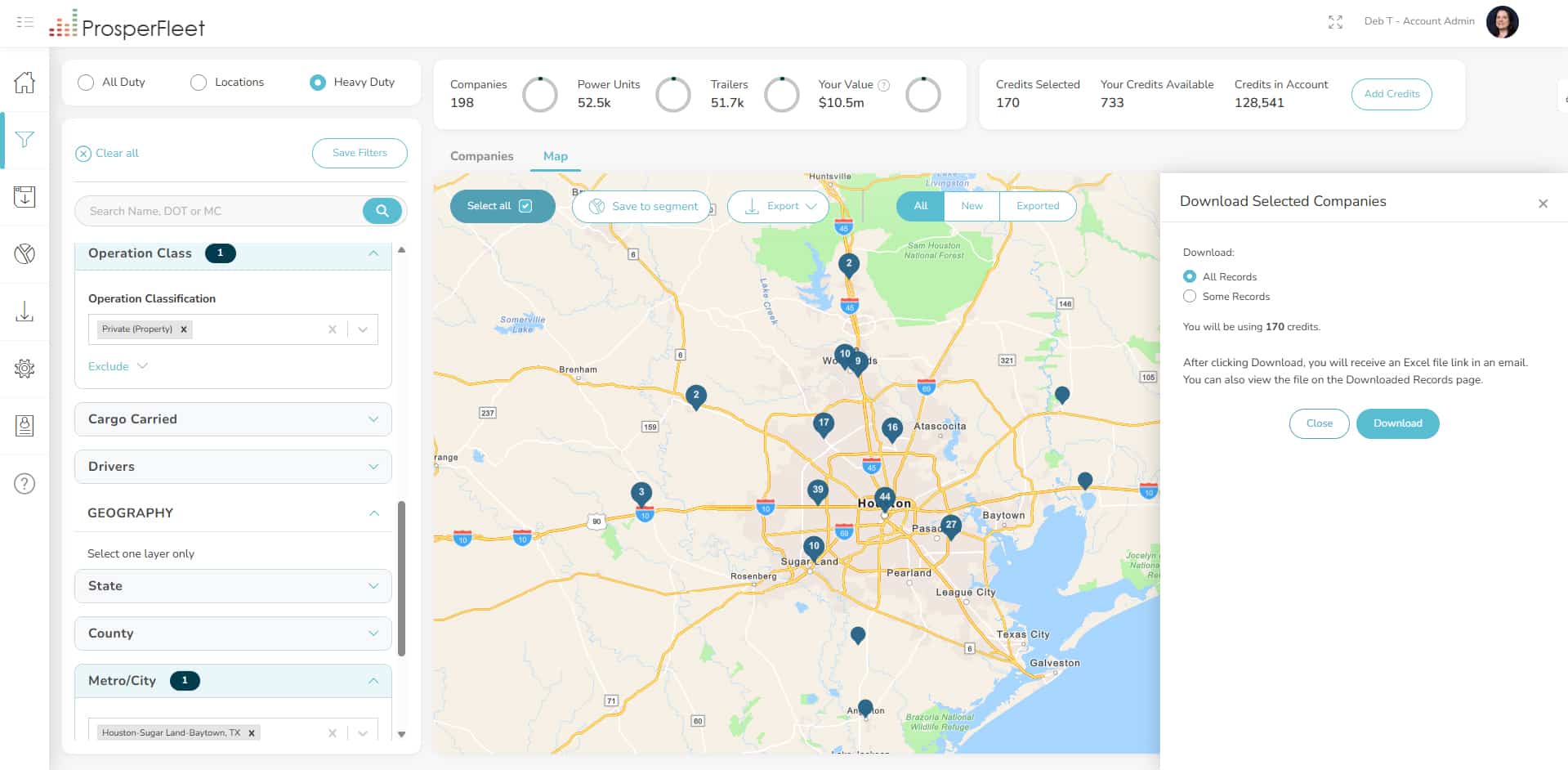
All companies chosen by your filters are “selected” on the map. If you want to export all the companies chosen by the filters, click on the Export button.
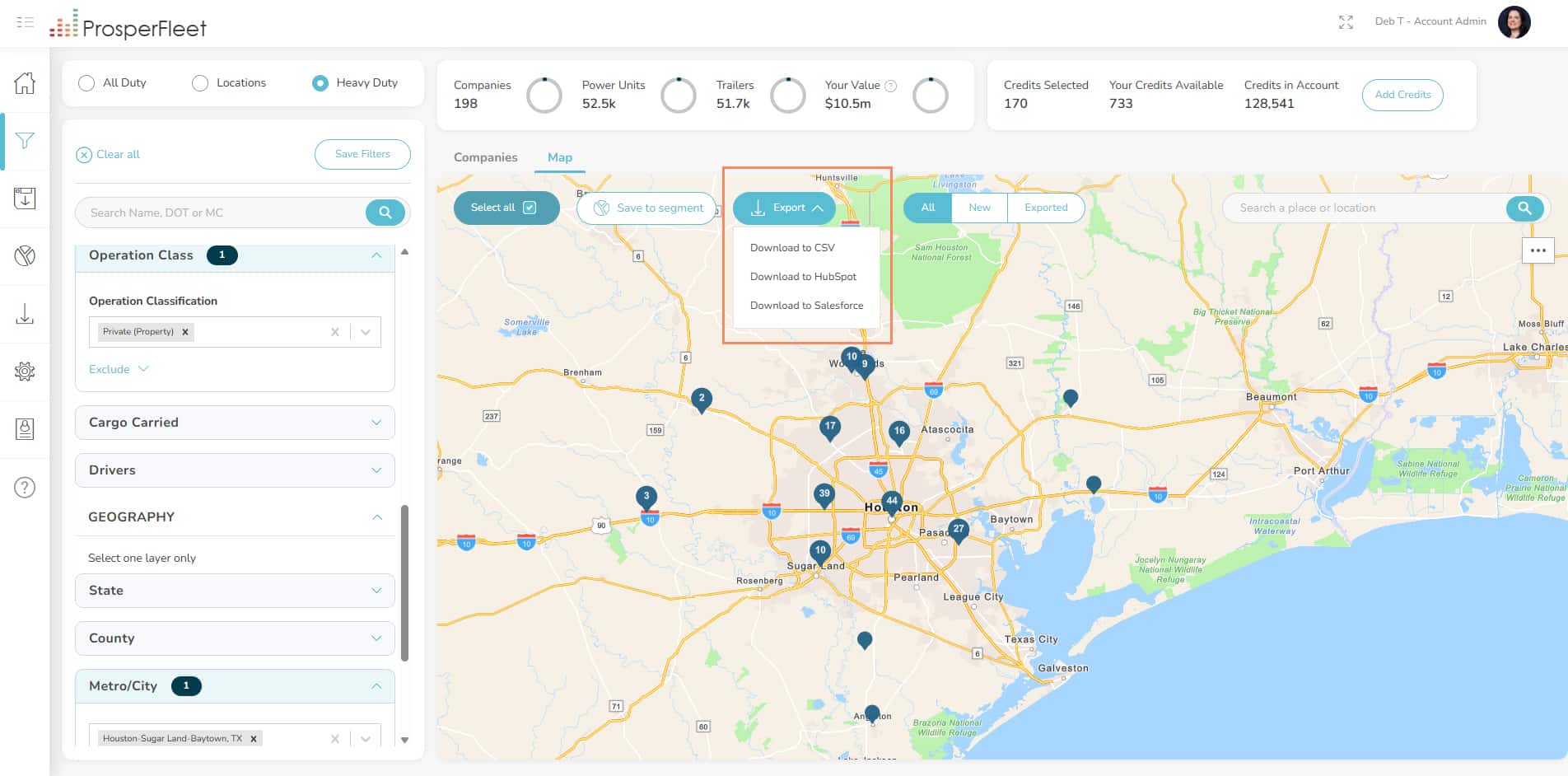
Choose to download to CSV file or a CRM you integrated with. The download slidein will tell you how many credits you’ll use. Click the Download button to get a file with all companies plotted on the map.
Drawing Geofences
But, maybe you don’t want to download all these 198 fleets in the Houston area. Geofences are good to use when your filters chose more companies than you want to download. You can focus on fleets in a smaller geographic area with a geofence.
Draw a geofence around the pins in the area you want to download. Visit the Draw Geofences page for all details about how to make geofences. You have three choices for geofence shapes: radius/circle, rectangle, or custom irregular shape which is great for odd shapes like along a highway.
Here, let’s choose the 5 companies to the west of the Houston area with a rectangle geofence:
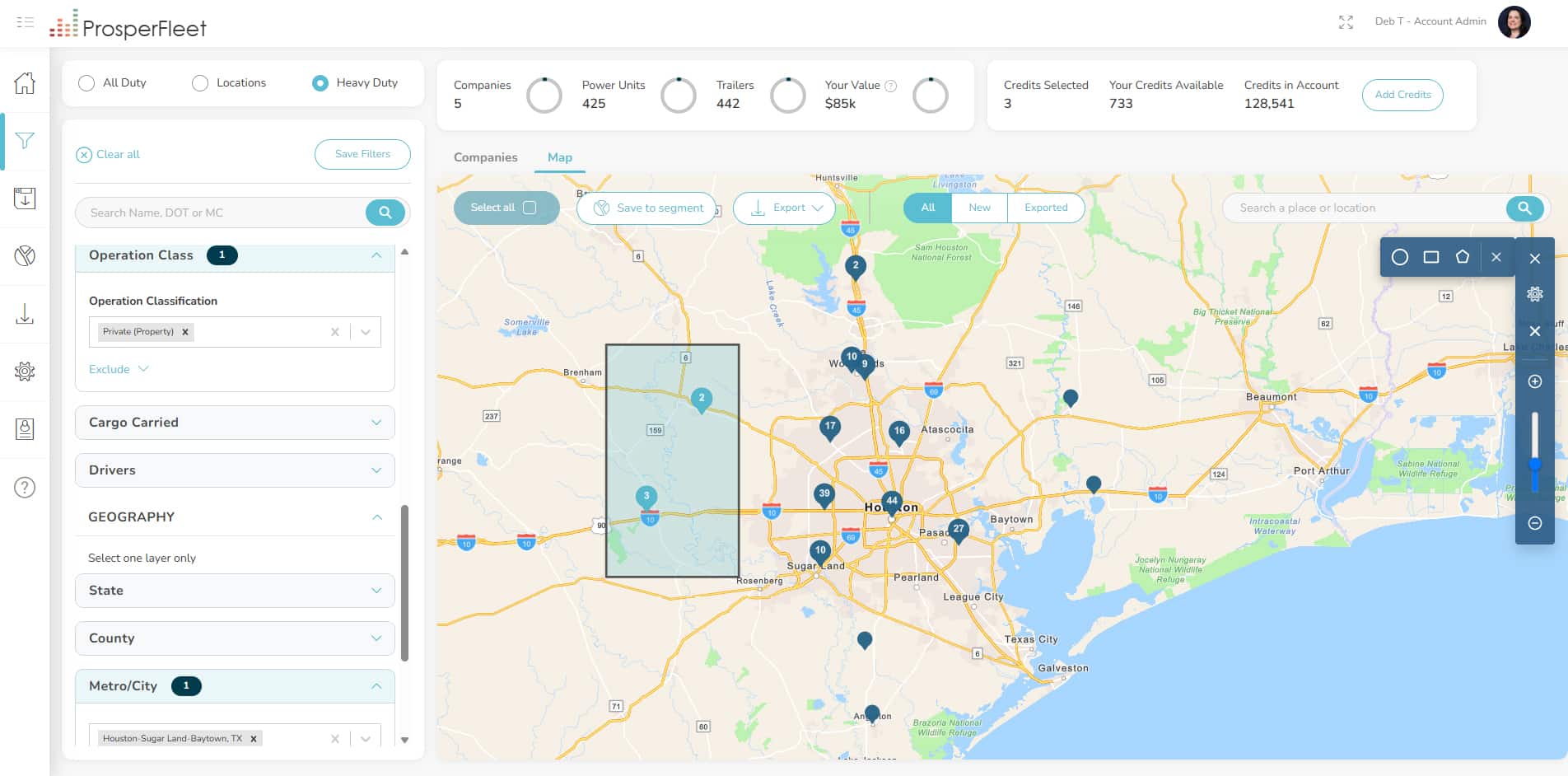
You can see in Companies Total that the 5 companies in the pins are selected.
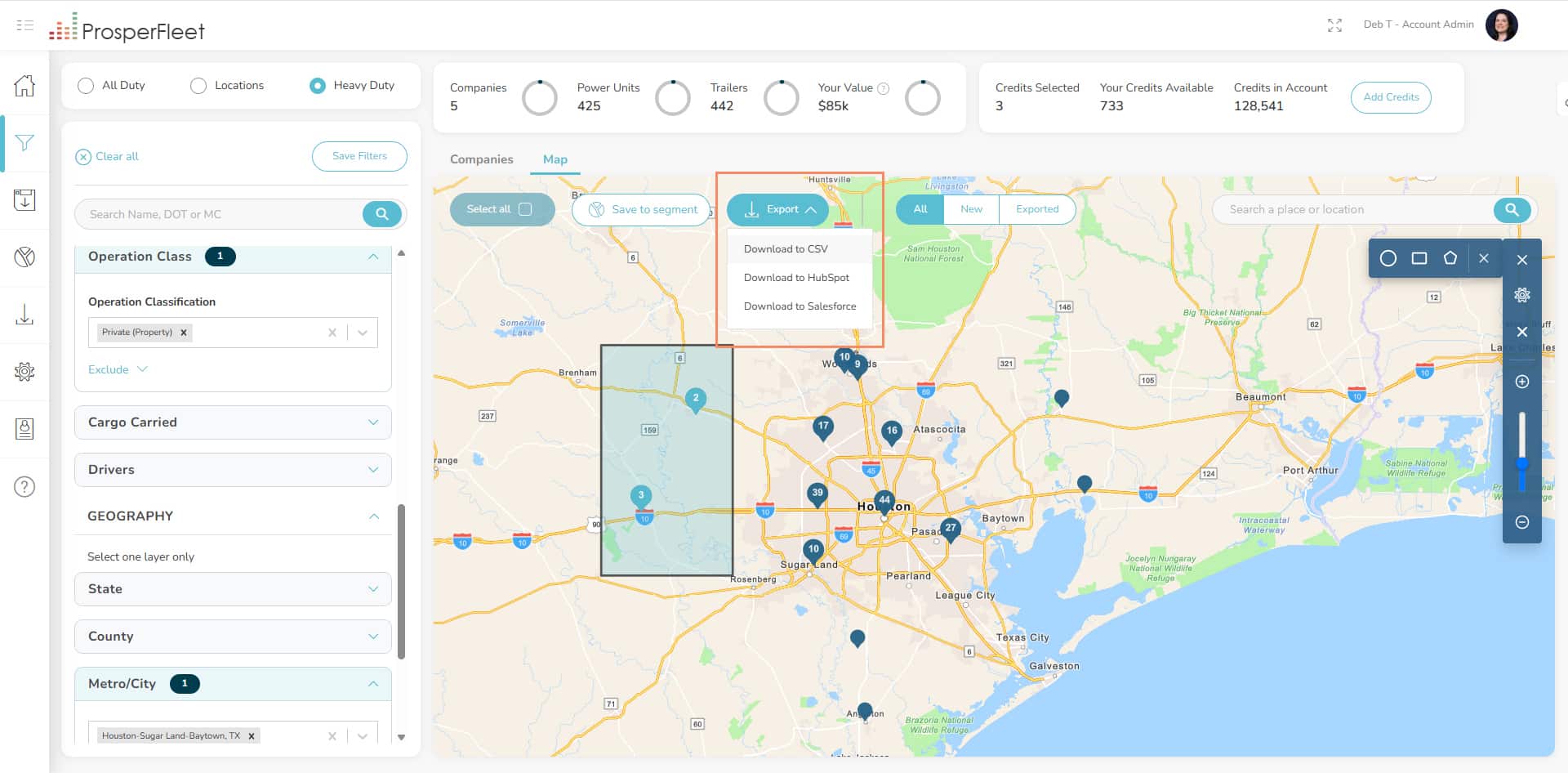
Now click the Export button to proceed with your download to CSV or a CRM integration.
Single Company Download
Maybe you hover over a pin, you see the basic information on the company card, and you decide to investigate the fleet more by clicking on the company card:
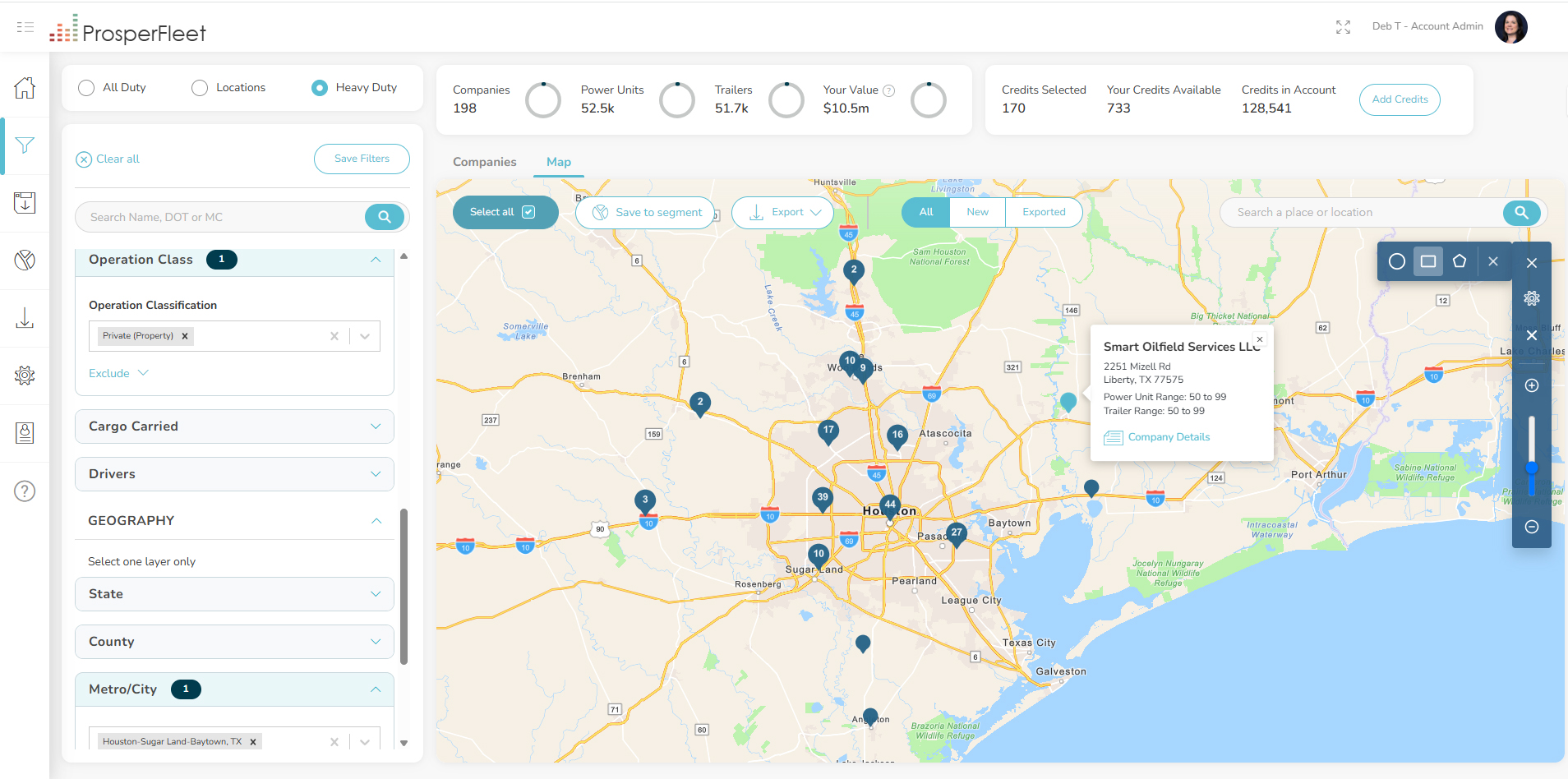
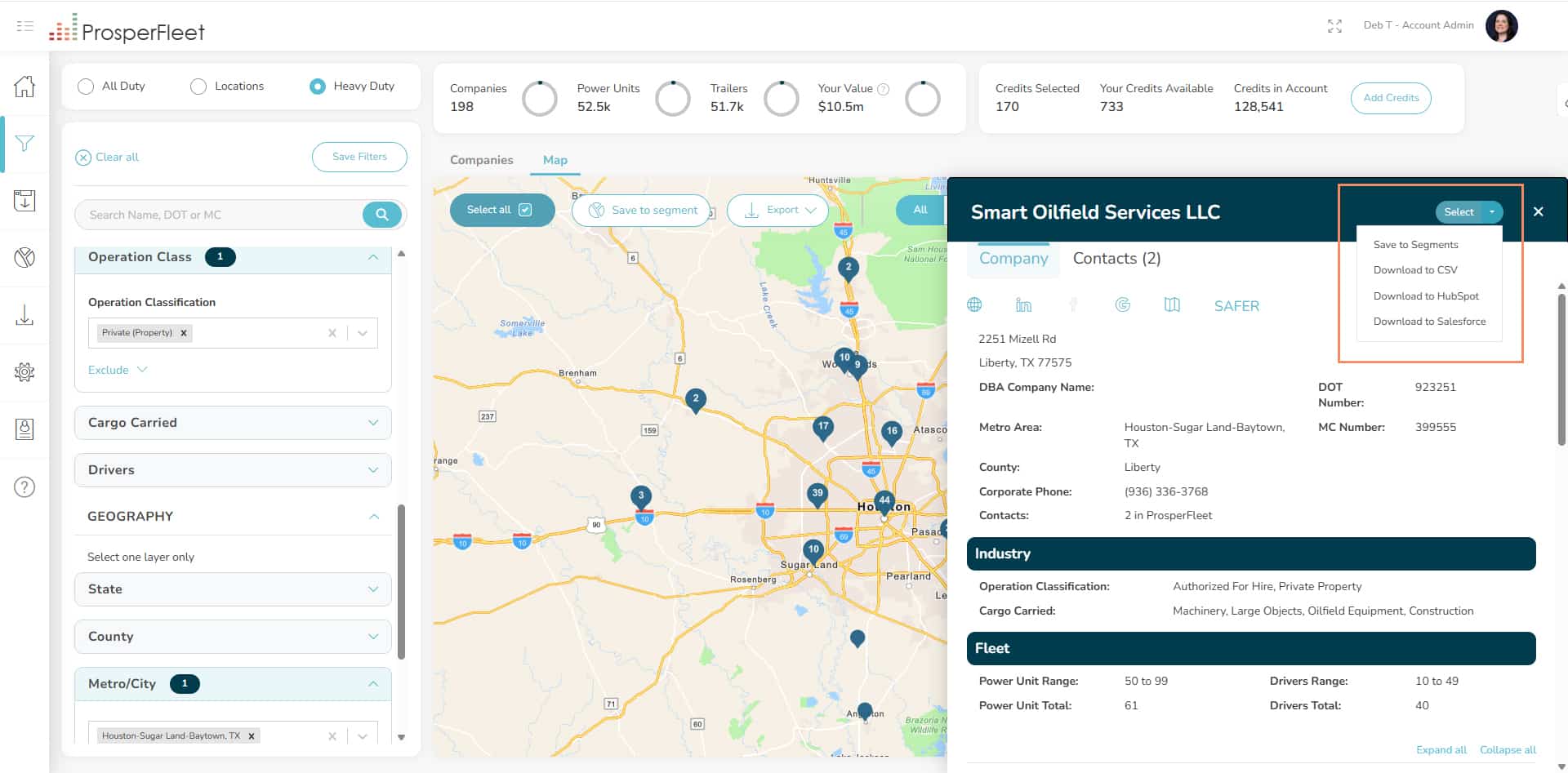
Clicking on the company card opens the Company Details that has all information about the company, the fleet, and contacts. If you want to download the company’s information, click the Select button in the top right corner. Then proceed with the download process.
Company Tab View
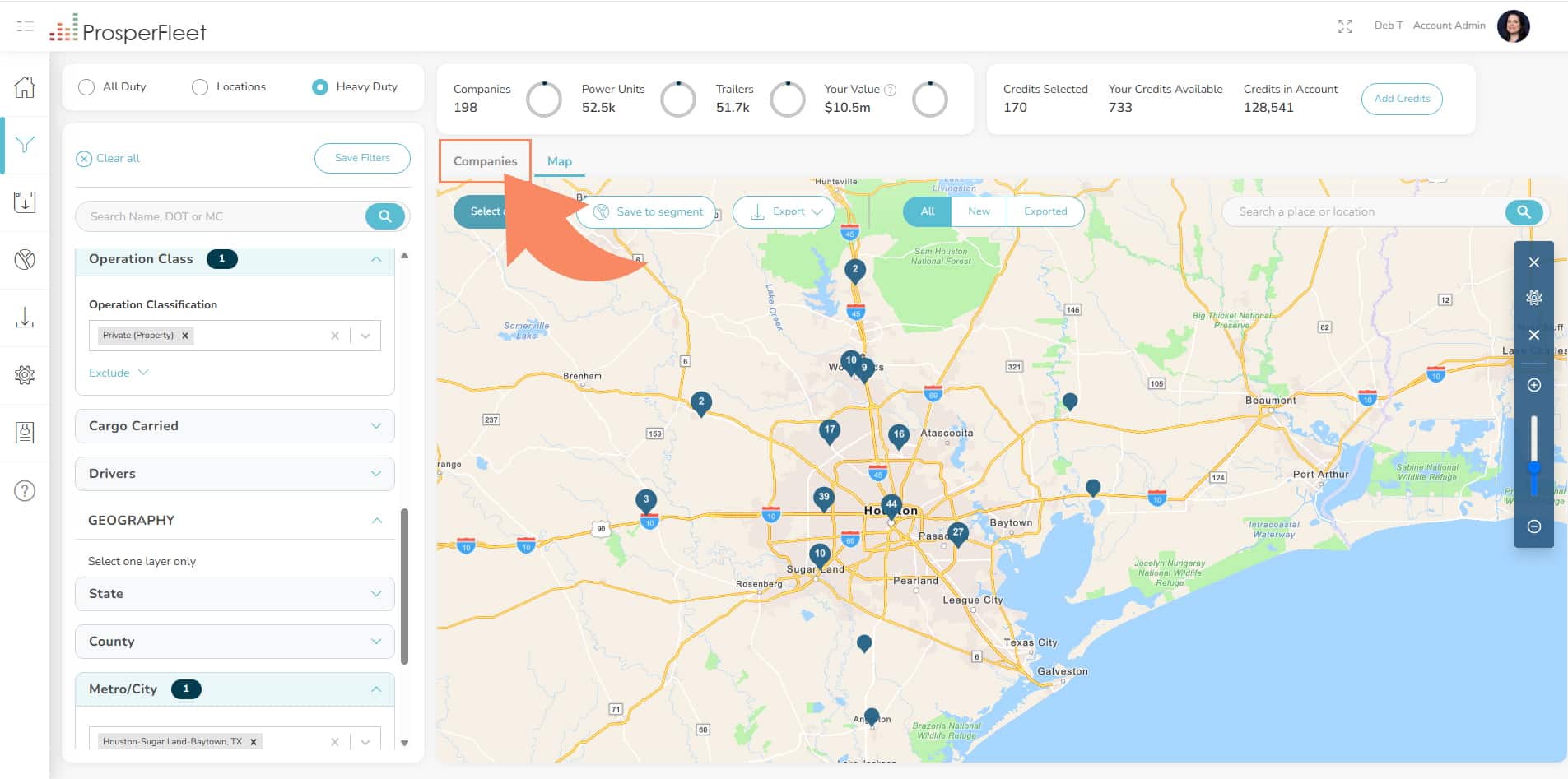
If you’re more comfortable choosing companies to download from the Company Table with columns and rows, you can click on the Companies tab:
All the companies your filters chose that were viewable on the map, are now viewable on the Company Table:
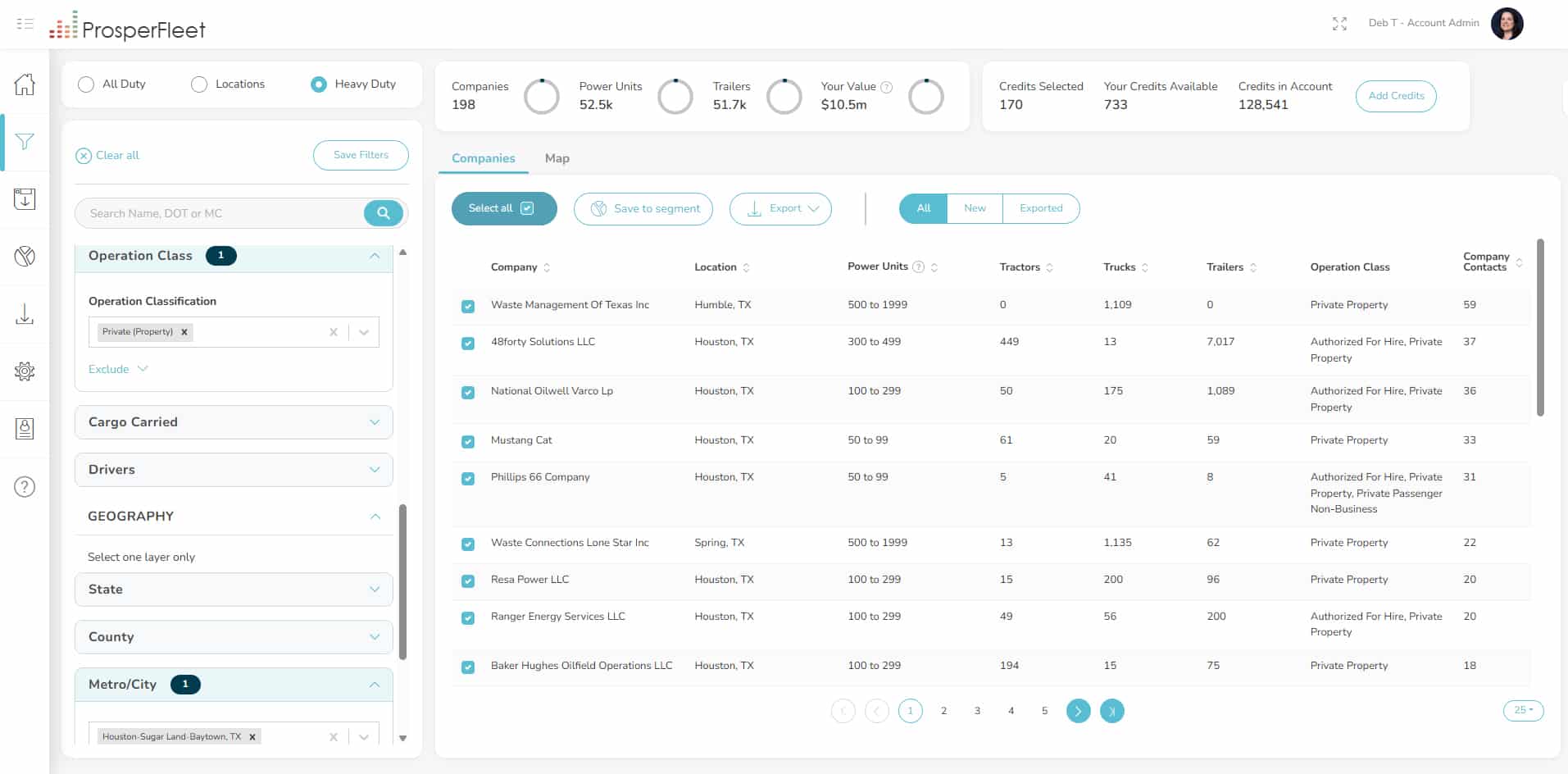
Now, you can select and unselect companies with the blue checkboxes, and download your selected companies from the Export button.
You can click on rows to open the Company Details.
You can toggle back and forth between the Company tab and the Map tab.
