ProsperFleet Help Center

All Duty Filters
Heavy Duty Filters
Use Data
Map View
Details
User Settings
Integrations
Admin Settings

Selling to Fleets
Playbook
Get tips to sell more.
Map View - Filtering/Searching
When you’re using the map, the filters all work the same. You just see the companies on a map instead of in columns and rows on a table.
Click on the Map tab to see the map while you’re filtering.
Here, we searched fleet size minimum 200 vehicles, agriculture fleets. We clicked on the Map tab, and you can see the fleets as pins on the map.
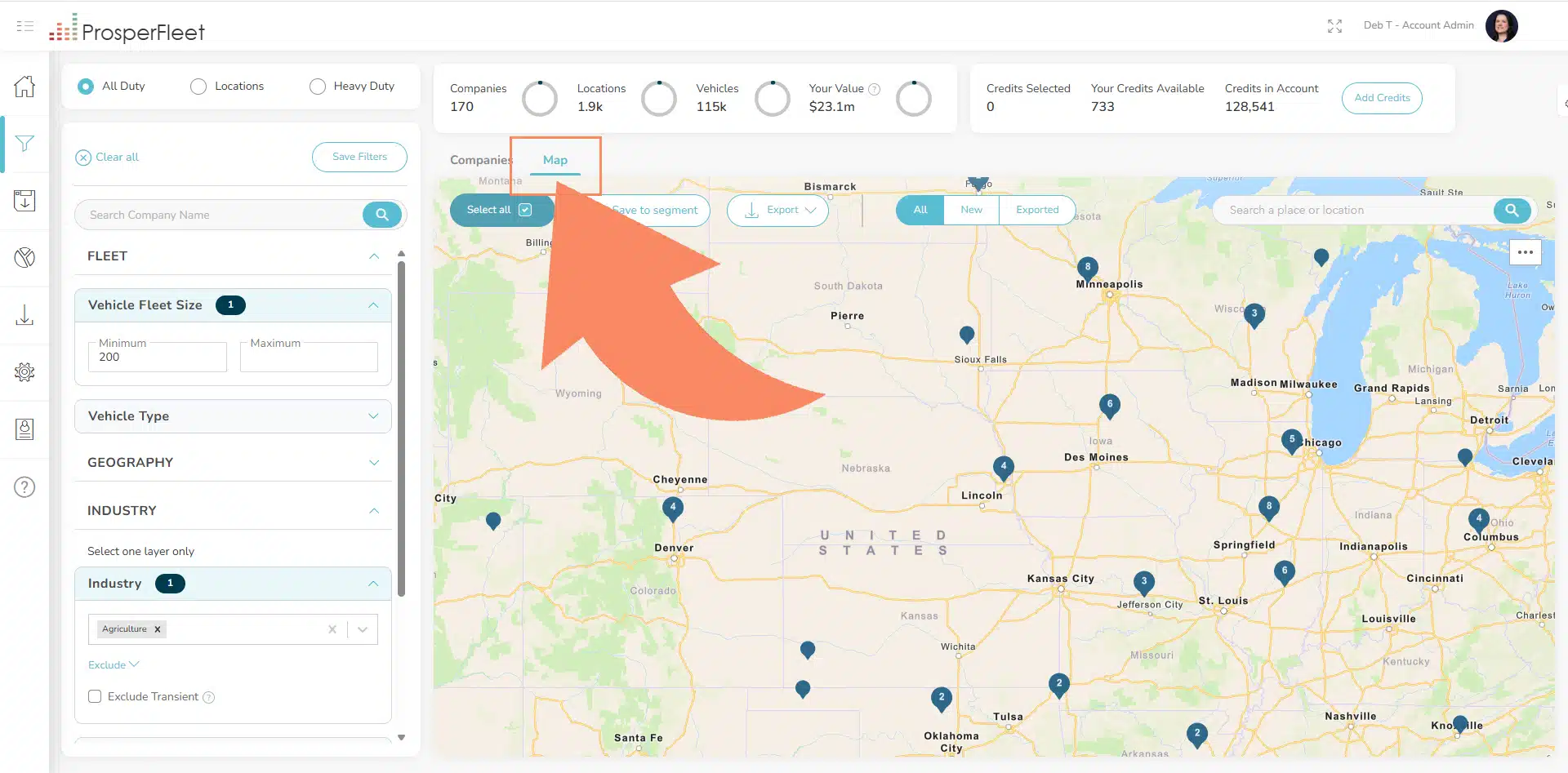
As you change your filter choices, you’ll see the pins change on the map.
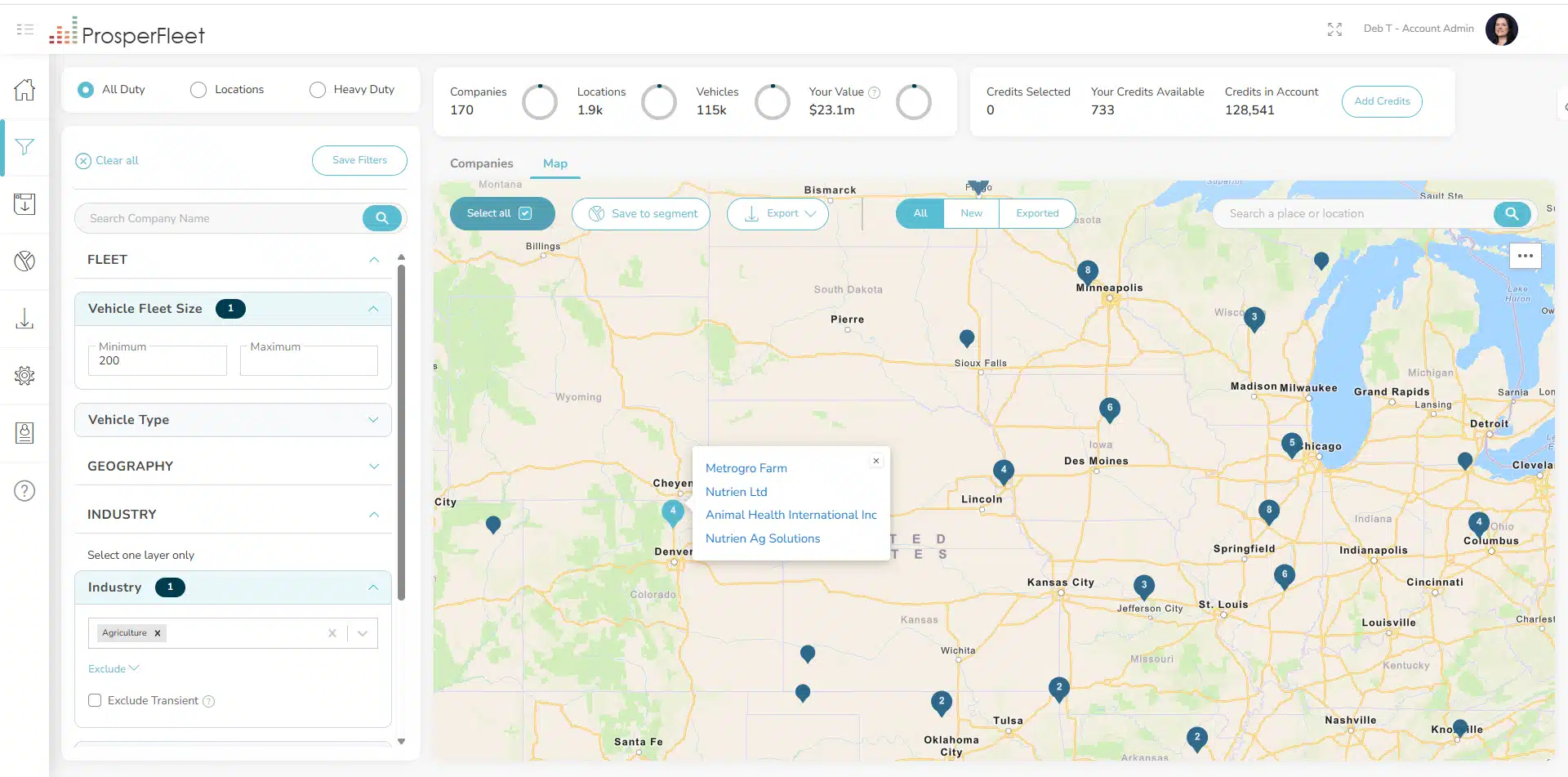
When there’s more than one fleet in a small geographic area, you’ll see a “cluster” pin. A cluster means a group of companies in the area. In the example above, you see pins that have numbers on them. These are cluster pins. Hover over the pins to see the company names represented by the cluster pin:
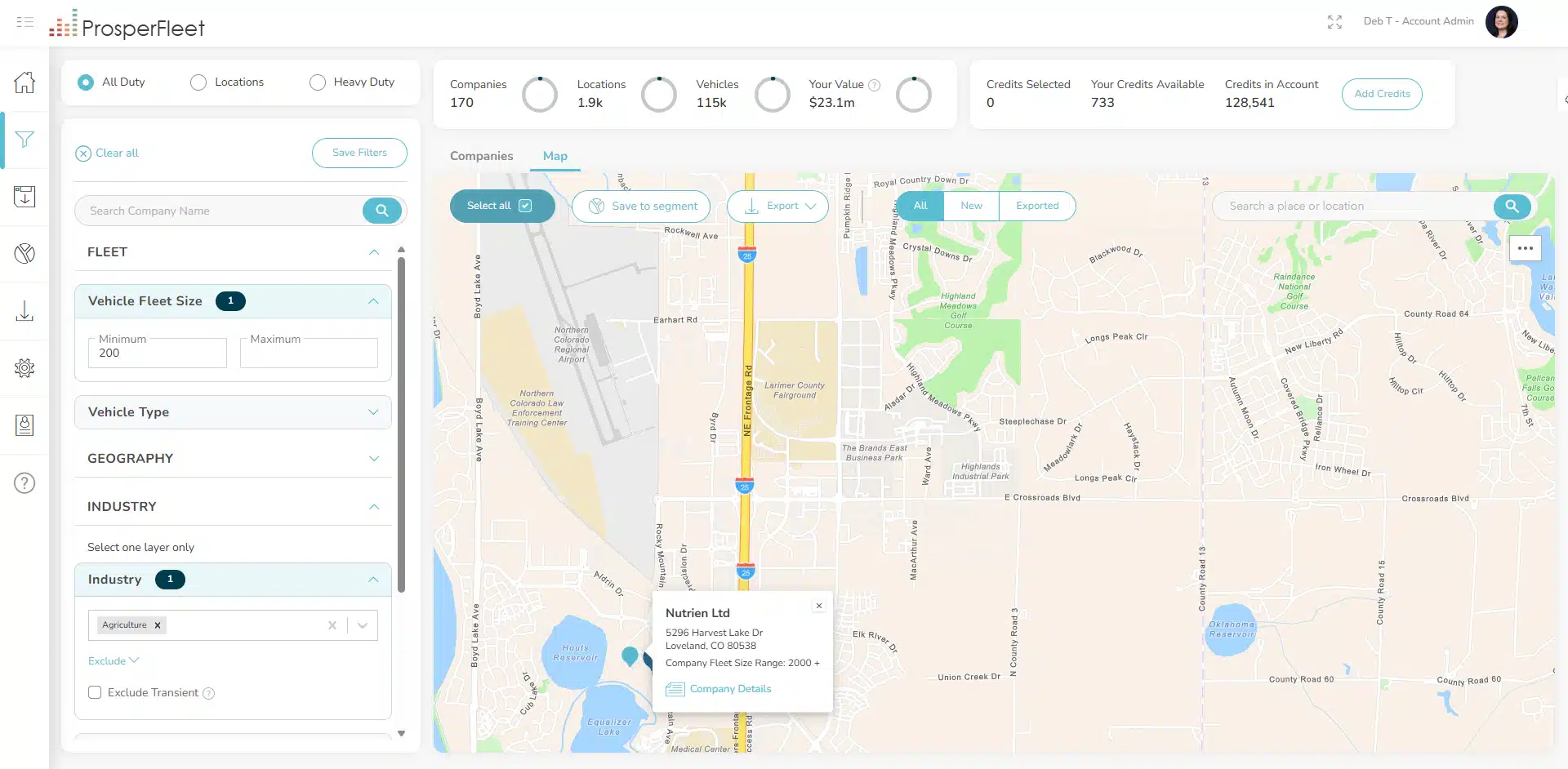
Zoom in so there’s no number on the pin, and now you have a pin for a single company.
Hover over the pin to see basic information about the company location and fleet.
Then click on the card to open the detail slidein for the company. You can now see all the details about the company, fleet and contacts.
If you want to save or export this individual company, click the Select button in the top right corner.
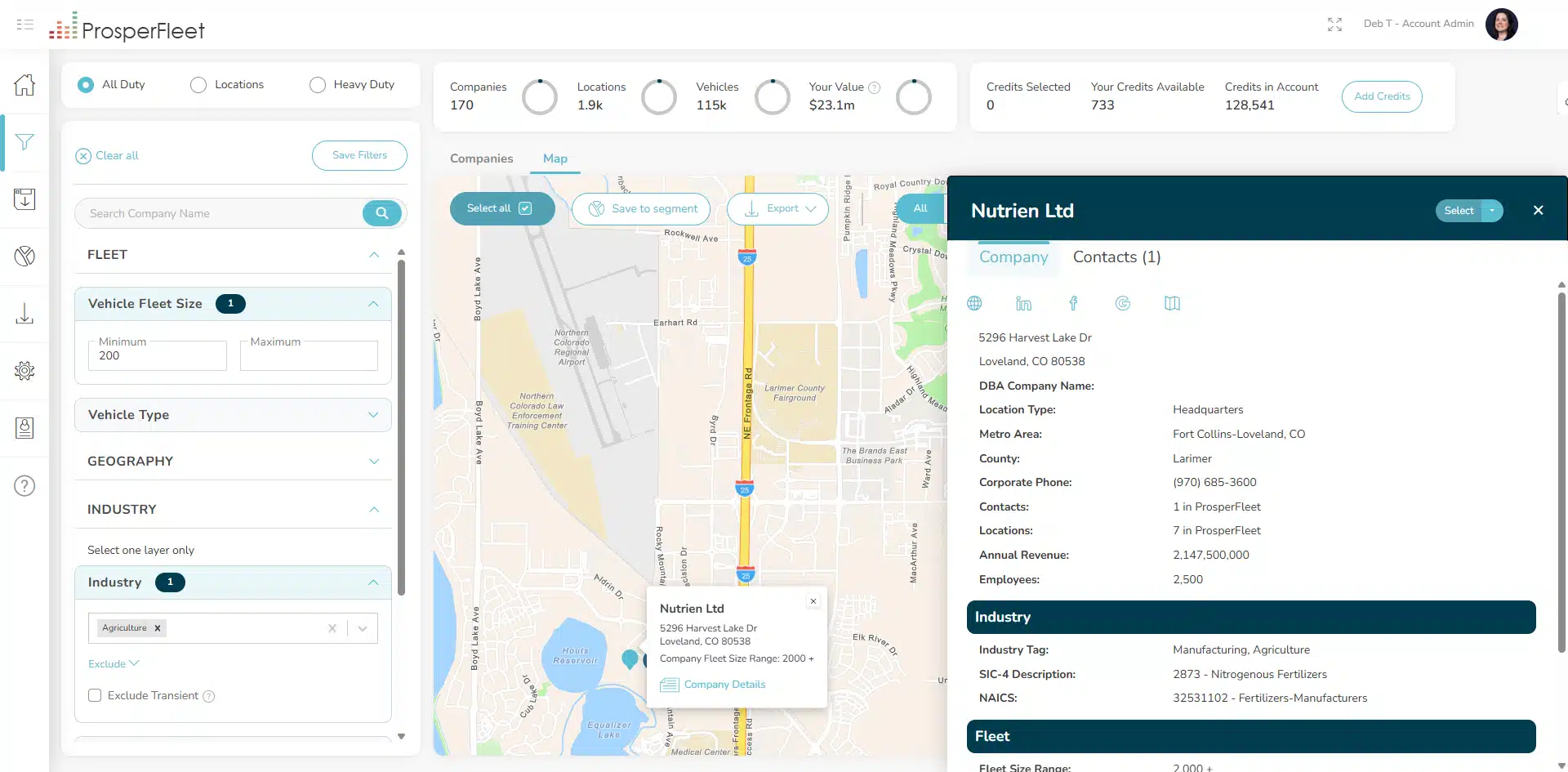
So, you can filter and search for fleets, then zoom in on the map and drill into individual companies.
Or, if you want to choose large numbers of companies to save or download, you can:
- Draw geofences on the map to choose companies
- Click to the Companies tab and select companies on the table
